Dashboard
Everyone
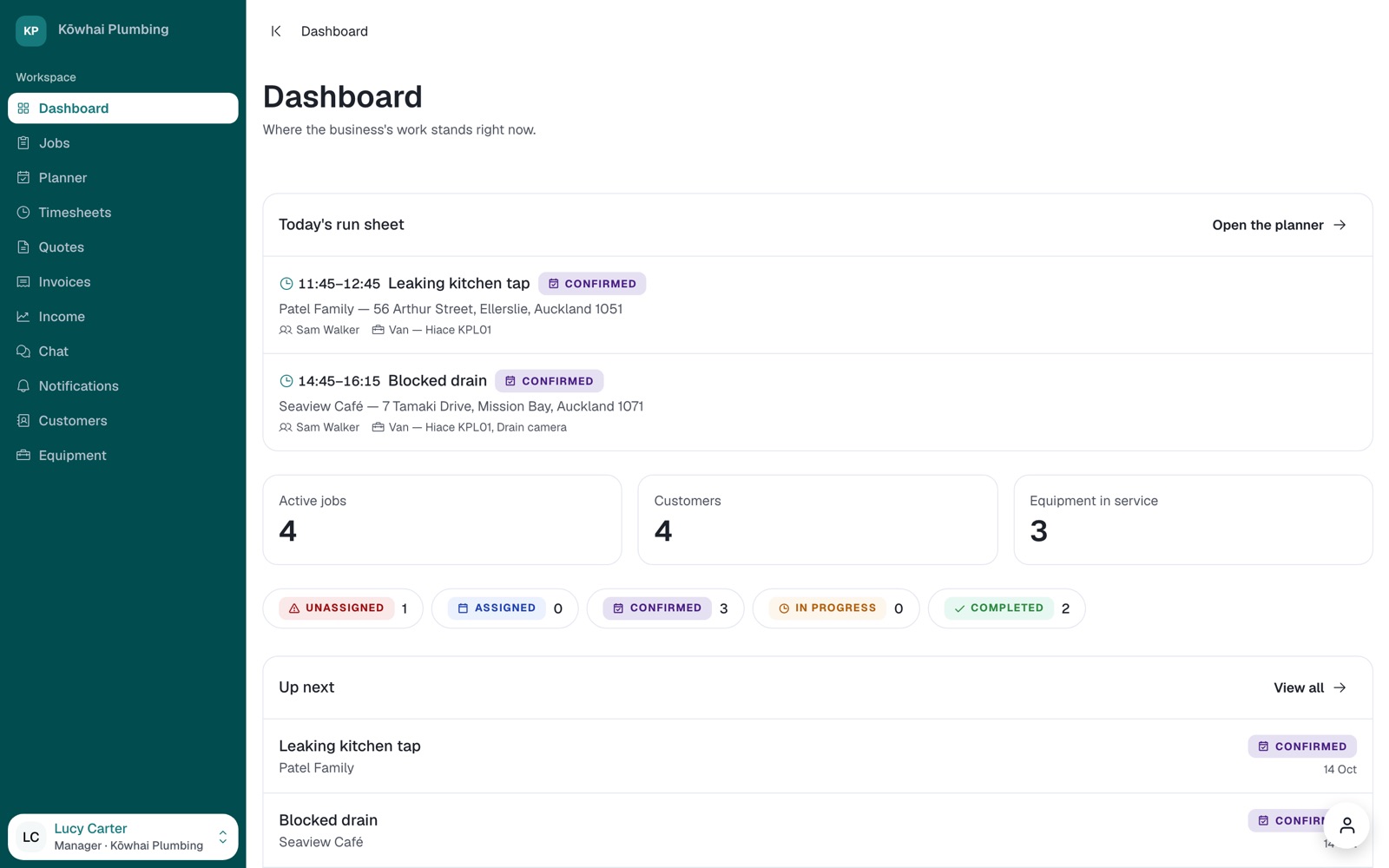
Where the business stands right now: today's run sheet of who is where, counts of jobs by status, and what's coming up next.
Try: sign in as Tom and read today's run sheet. Both of Sam's jobs are on it.
IMD · Preview for testing
Everything you need to try IMD on the web and on your phone: how to get in, how to tell us when something is wrong, and a quick tour of each part of the app.
IMD comes in two parts that share one set of data. The web app has everything, with the room to run the business from a desk: the Planner's week, timesheets, income and the company's settings. The phone app carries the crew's day (today's jobs, a timer for travel and time on site, photos and chat), and gives owners and managers most of the office work on the move: raising jobs, putting people on them, quotes, invoices and payments.
The preview is a full working copy of both, running on test servers. Nothing you do here reaches a real customer, and nothing is charged. It is the version we want you to push on before IMD goes live.
It's a test space. Try anything, including the things a real business would never do. We may reset the data from time to time. If you set up something you want to keep, tell us first.
Use the web on a laptop or desktop, and the app on your phone. Every login works on both. Signing in to both at once, as two different people, is the best way to see them work together.
Go to imd.publicapreview.co.nz/login and sign in with one of the demo logins below. Chrome, Safari, Edge and Firefox all work.
These are the people in Kōwhai Plumbing, a small demo business we've set up for you. Every one uses the password ImdDemo2026!.
| Person | Role | Sign in with | Best on | What's waiting |
|---|---|---|---|---|
| Tom Bennett | Owner | owner@kowhai.test | Web or phone | The whole business. Shows the setup walkthrough on first sign-in. |
| Lucy Carter | Manager | manager@kowhai.test | Web or phone | Runs the office: jobs, Planner, quotes and invoices. |
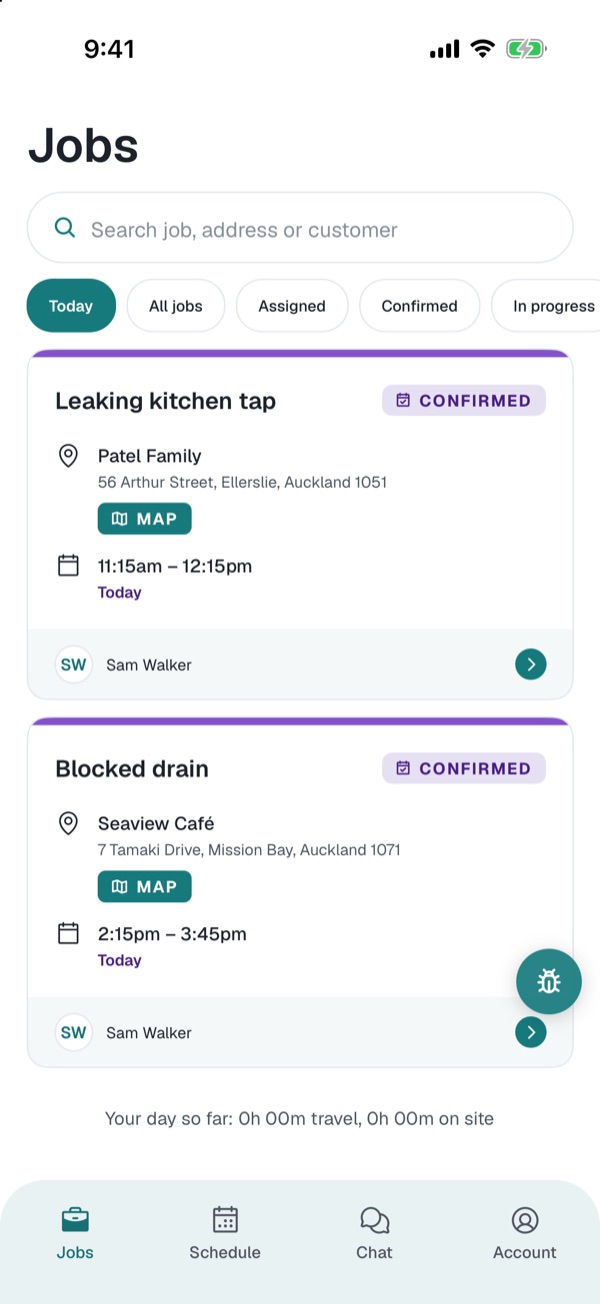
| Sam Walker | Tradie | tradie@kowhai.test | Phone | Two jobs today, ready to start. |
| Ruby Ngata | Tradie | tradie2@kowhai.test | Phone | Tomorrow's cylinder job with Sam. |
A good first session: Tom on the web, Sam on the phone. Later, try Lucy on the phone to see the office side of the app.
Both the web and the phone app have a feedback button from Pinpoint, the tool our team works from. Anything you send lands with us as a card, with a screenshot and the details we need to find the problem. Use it for bugs, but also for anything confusing, missing, or that you'd simply like done differently.
The button in the way? Press and hold it to hide it until you next open the app.
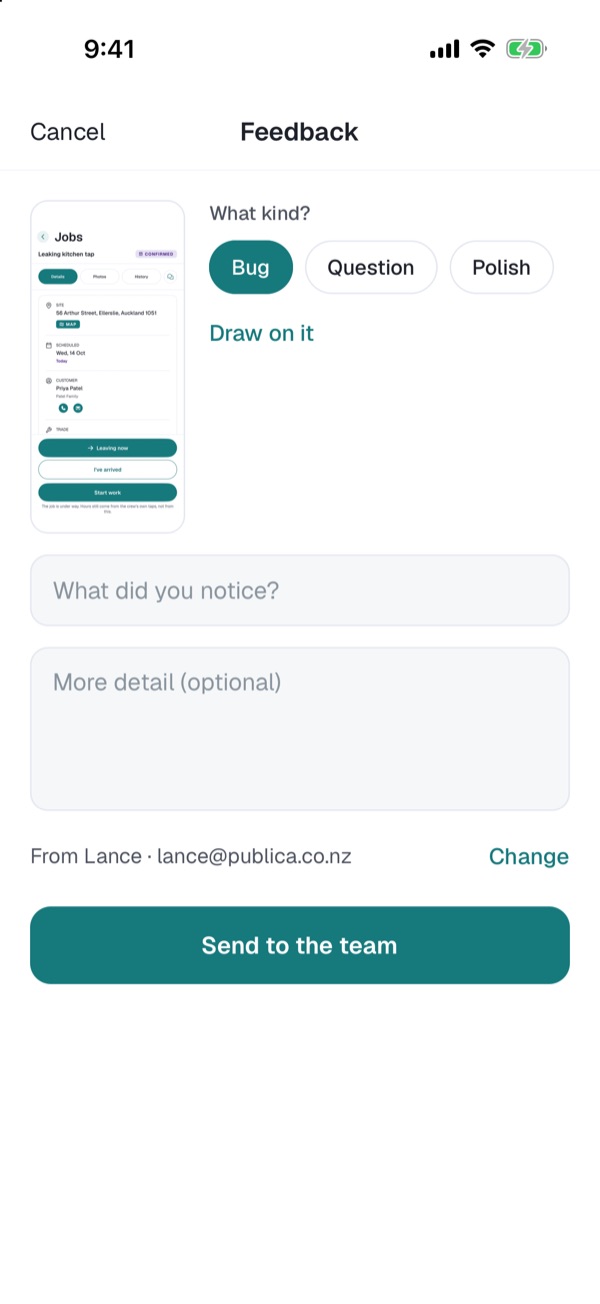
Each card reaches Lance, Nikko and Kelsie at Publica. We reply on the card itself, so you can follow what happens to everything you send.
Start with the demo business to see IMD with some work already in it. Then set up a business of your own to see what a brand-new customer goes through.
A small Auckland plumbing business with most of a year's work behind it:
Invitations need real email addresses. The demo addresses don't receive mail. If you have a Gmail account, you can invent as many test tradies as you like by adding a plus and a word to your address: you+sam@gmail.com and you+ruby@gmail.com both arrive in your own inbox.
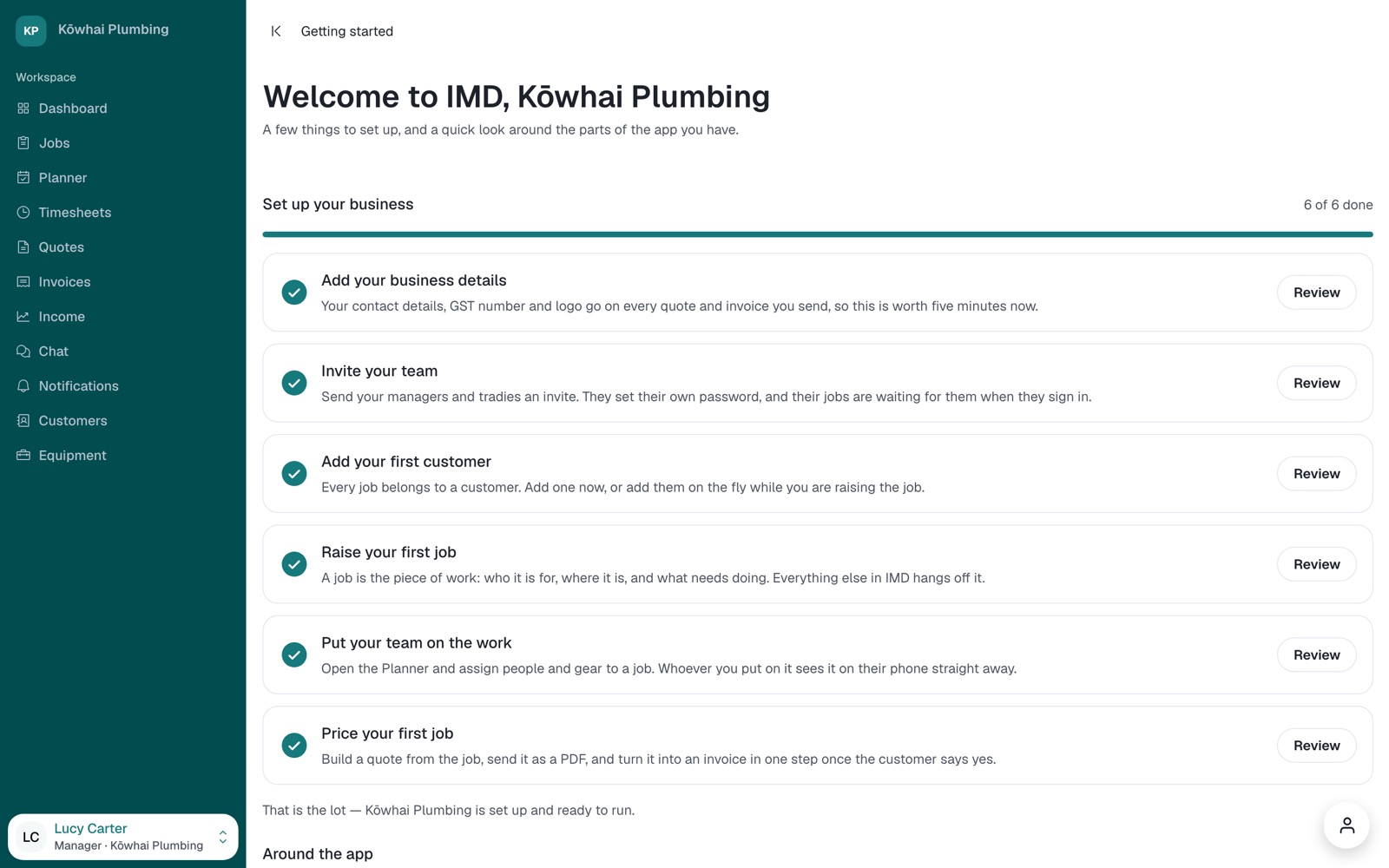
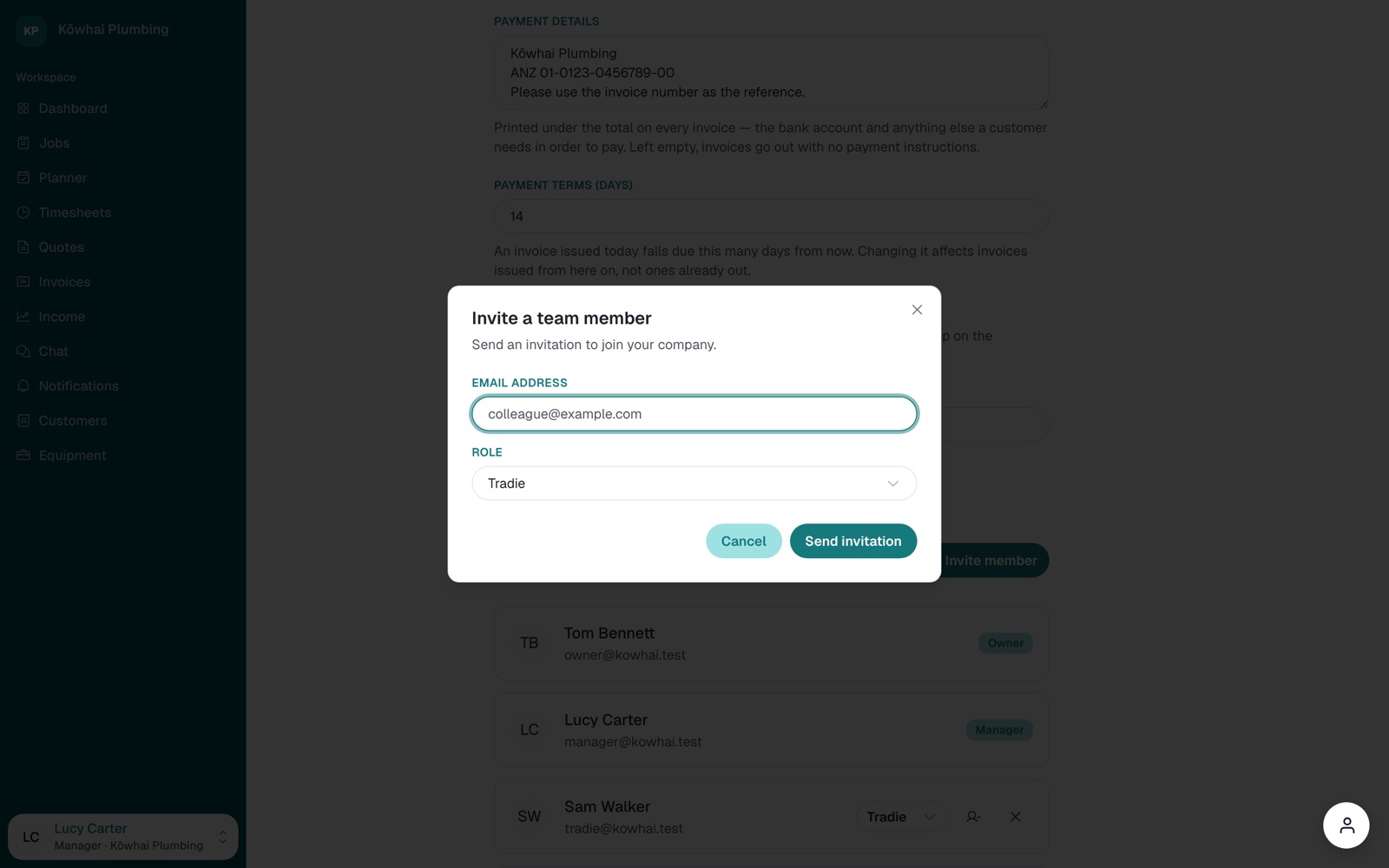
Short runs through the jobs IMD is built for. Each one takes about ten minutes. Report anything that trips you up along the way.
To see the email a customer receives, change Seaview Café's email to your own under Customers before you send anything.
The sidebar on the left is the map of the web app. Each part is described below in the order it appears there. A tradie sees fewer parts than the office, so this lists who sees each one.
Where the business stands right now: today's run sheet of who is where, counts of jobs by status, and what's coming up next.
Try: sign in as Tom and read today's run sheet. Both of Sam's jobs are on it.
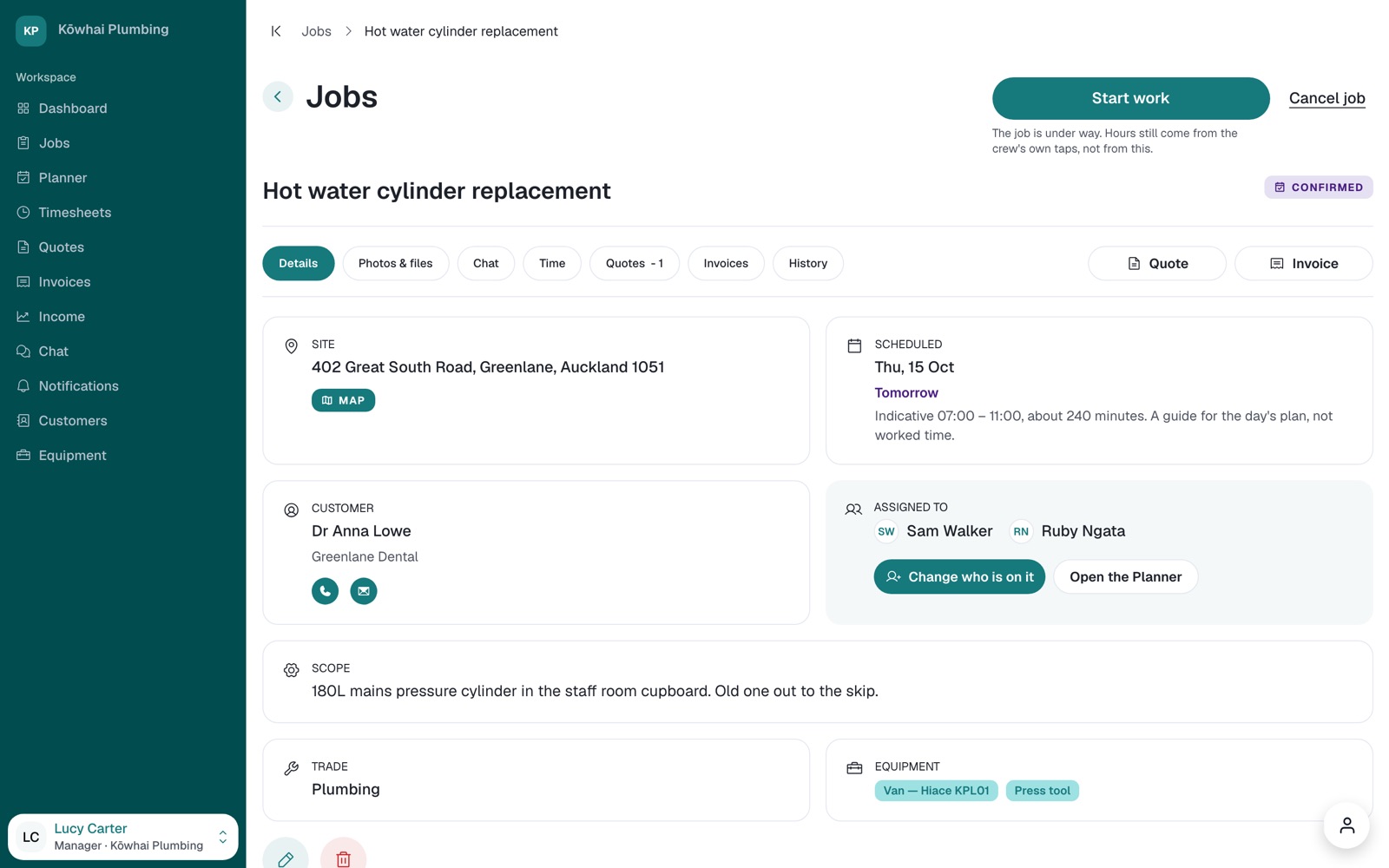
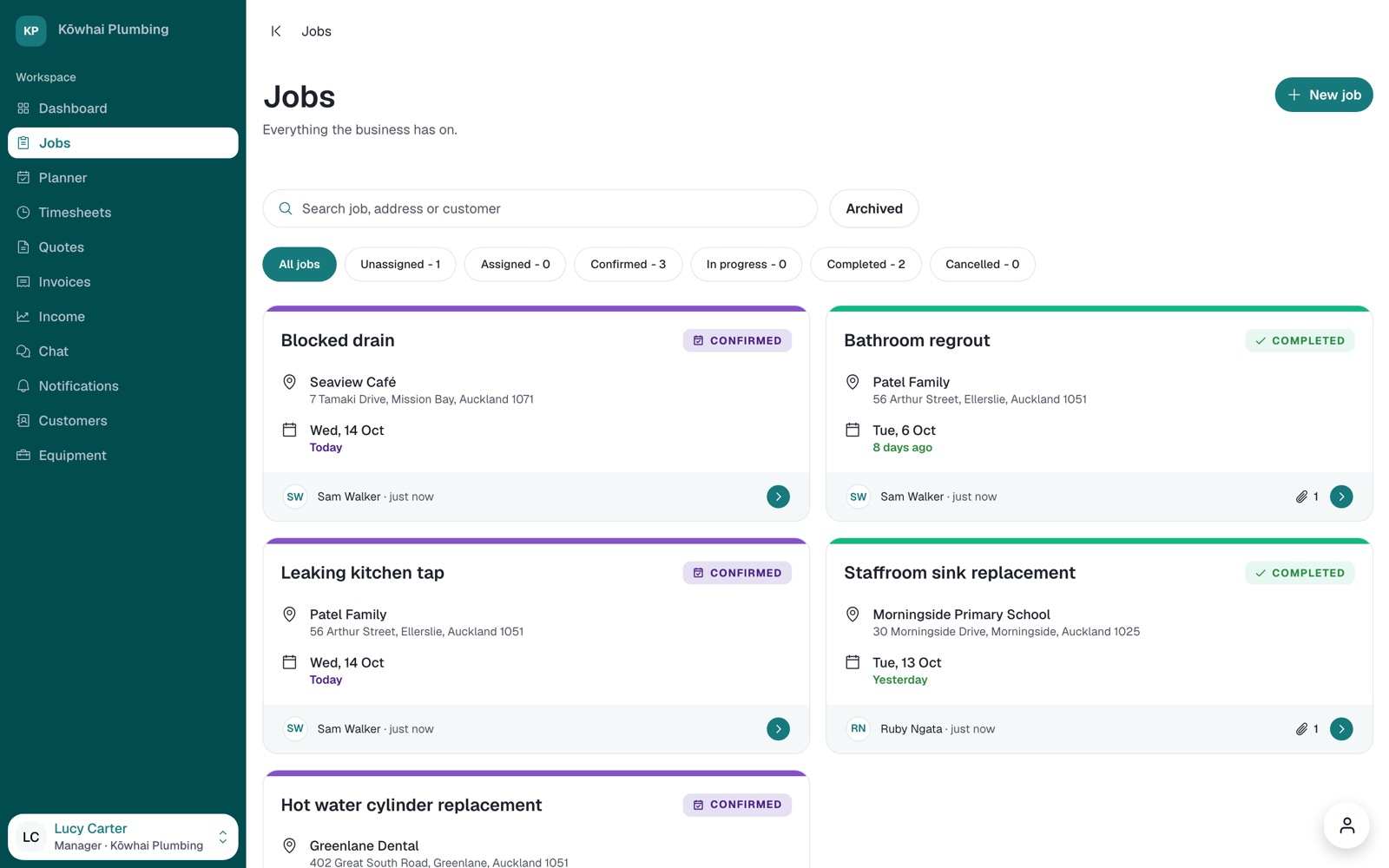
The register of every job the business has on, from raised to invoiced. A job holds the customer, the site, what needs doing, photos and files, its chat, the time recorded on it, its quotes and invoices, and a history of who changed what. Tradies see only the jobs they are on.
Try: raise a new job, or open Hot water cylinder replacement and look through its tabs.
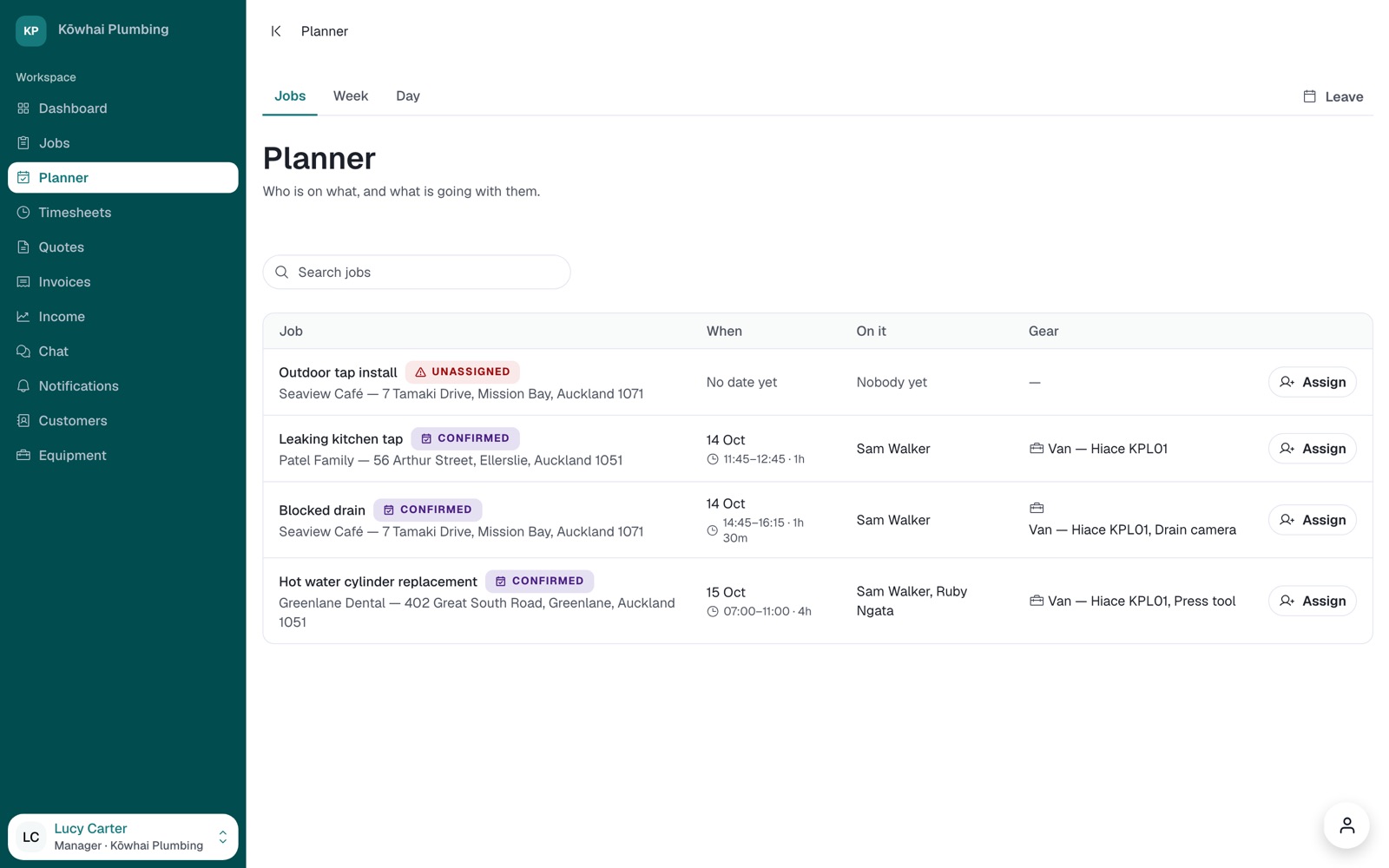
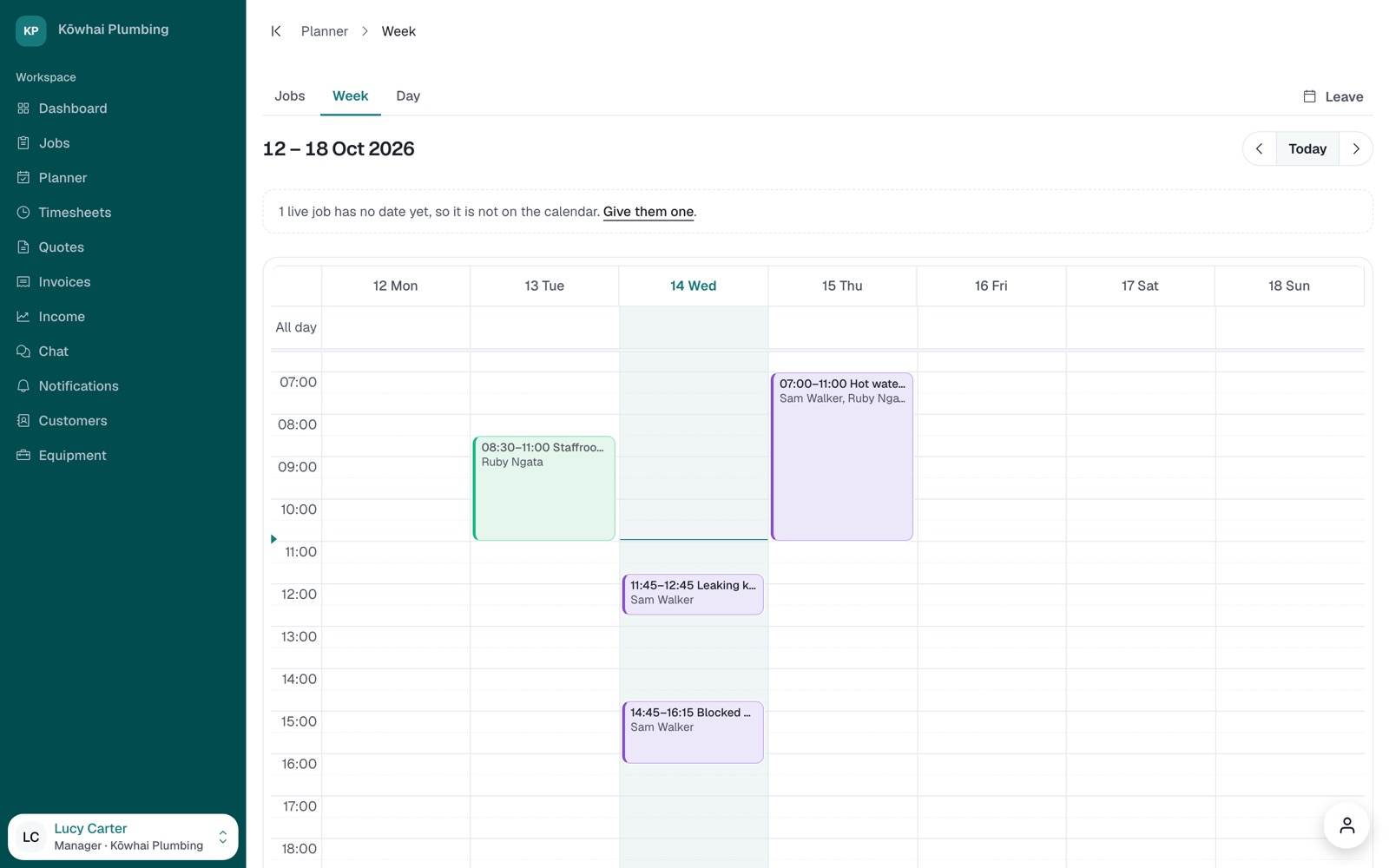
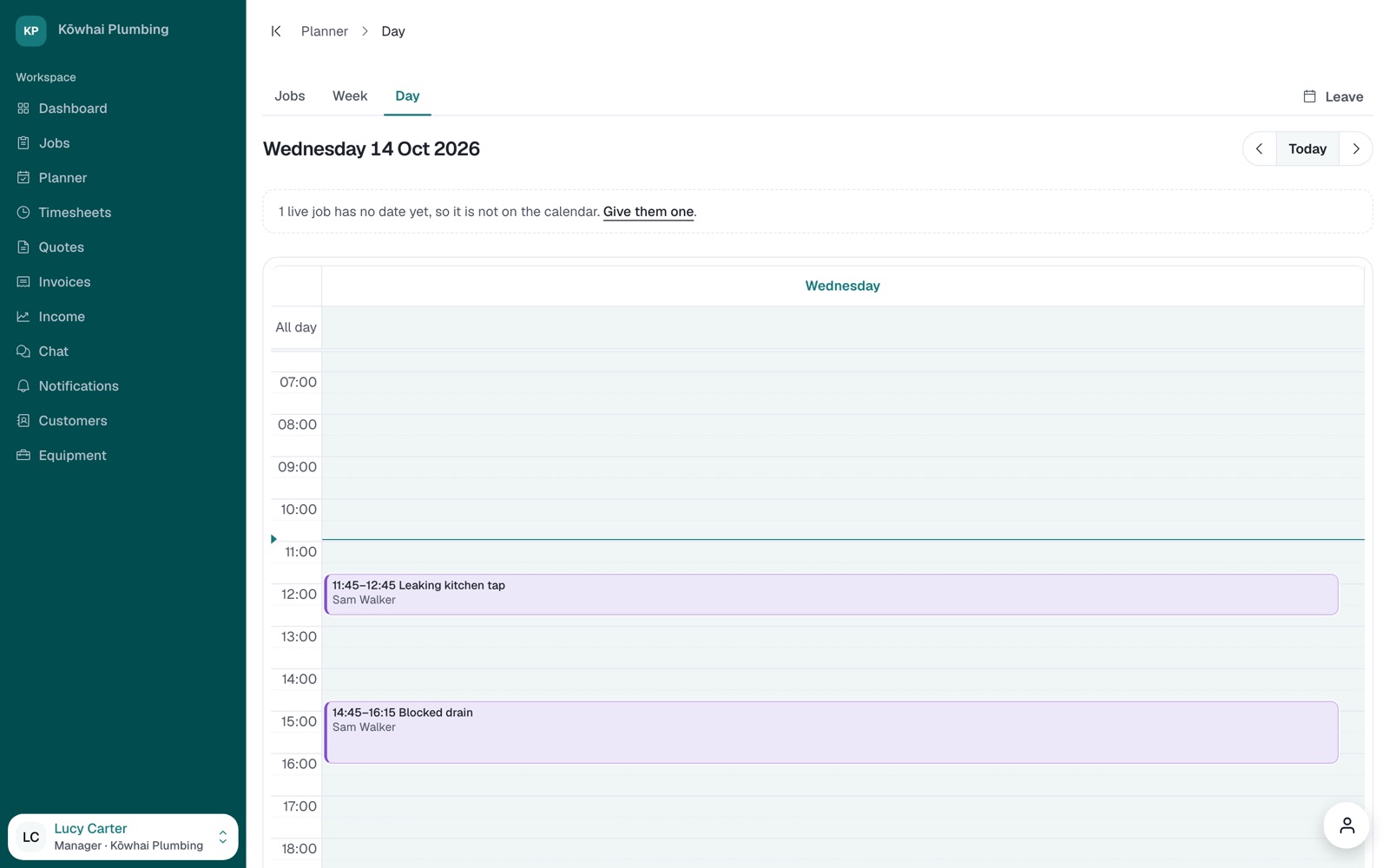
Who is on what, and when. Assign people and gear to jobs, tag leave, and read the week as a calendar or a day at a time. Whoever you put on a job sees it on their phone straight away.
Try: assign Outdoor tap install, then switch to the Week tab to see it land.
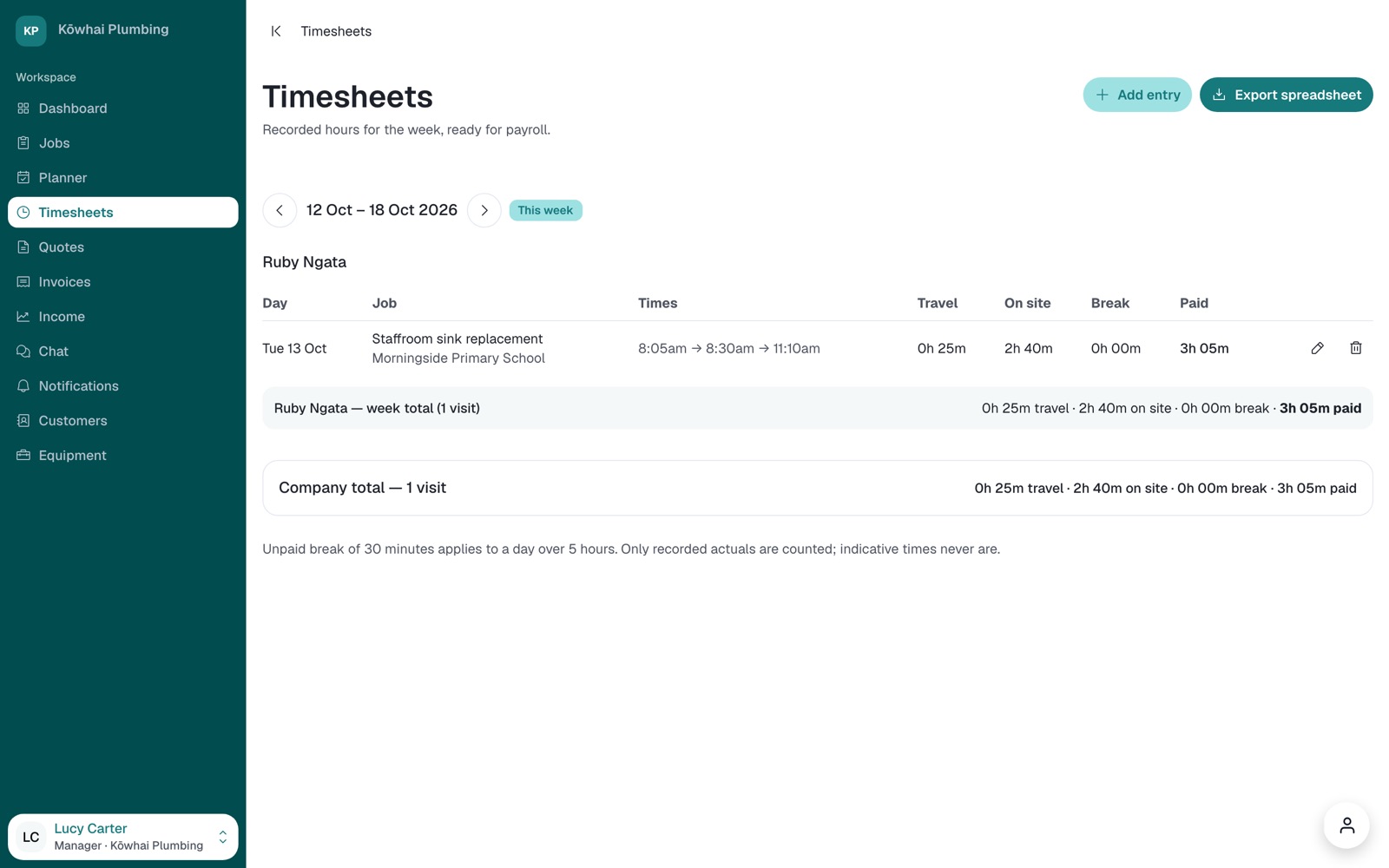
The hours the team recorded with the phone timer, laid out by week. The office can correct an entry and export the week for payroll. A tradie sees their own week here, with nothing to fill in.
Try: after Sam finishes a job on the phone, find his hours here.
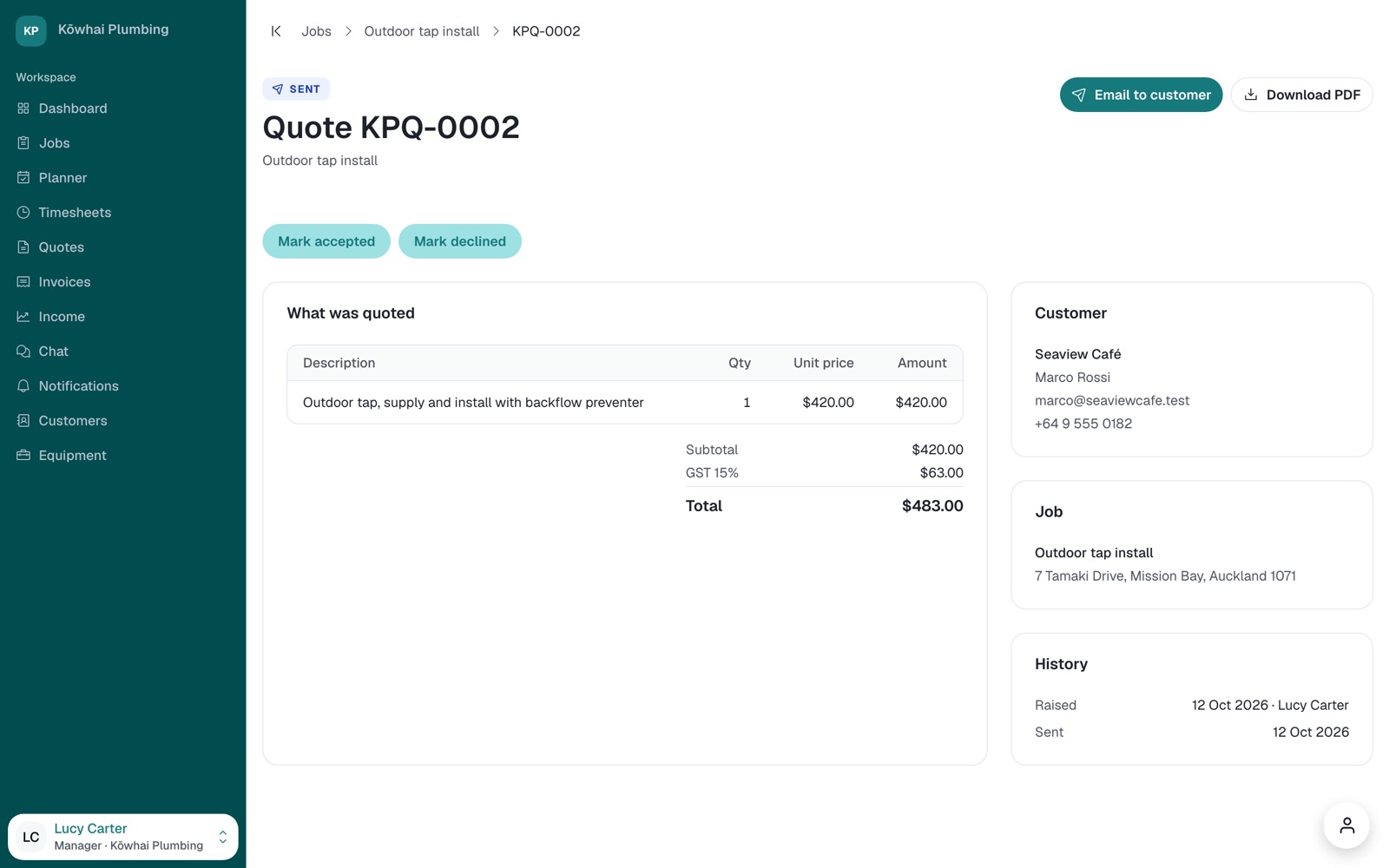
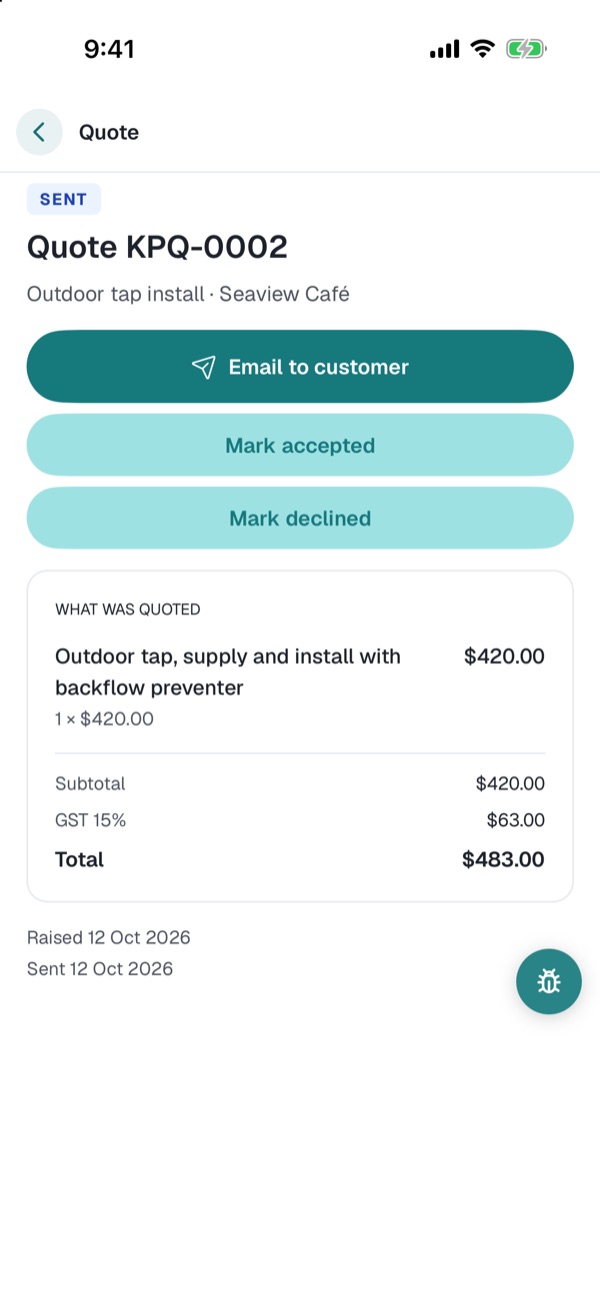
Price a job, email it to the customer as a PDF, and record whether they said yes. An accepted quote turns into an invoice in one step.
Try: start a quote from a job, with a few lines, and download the PDF.
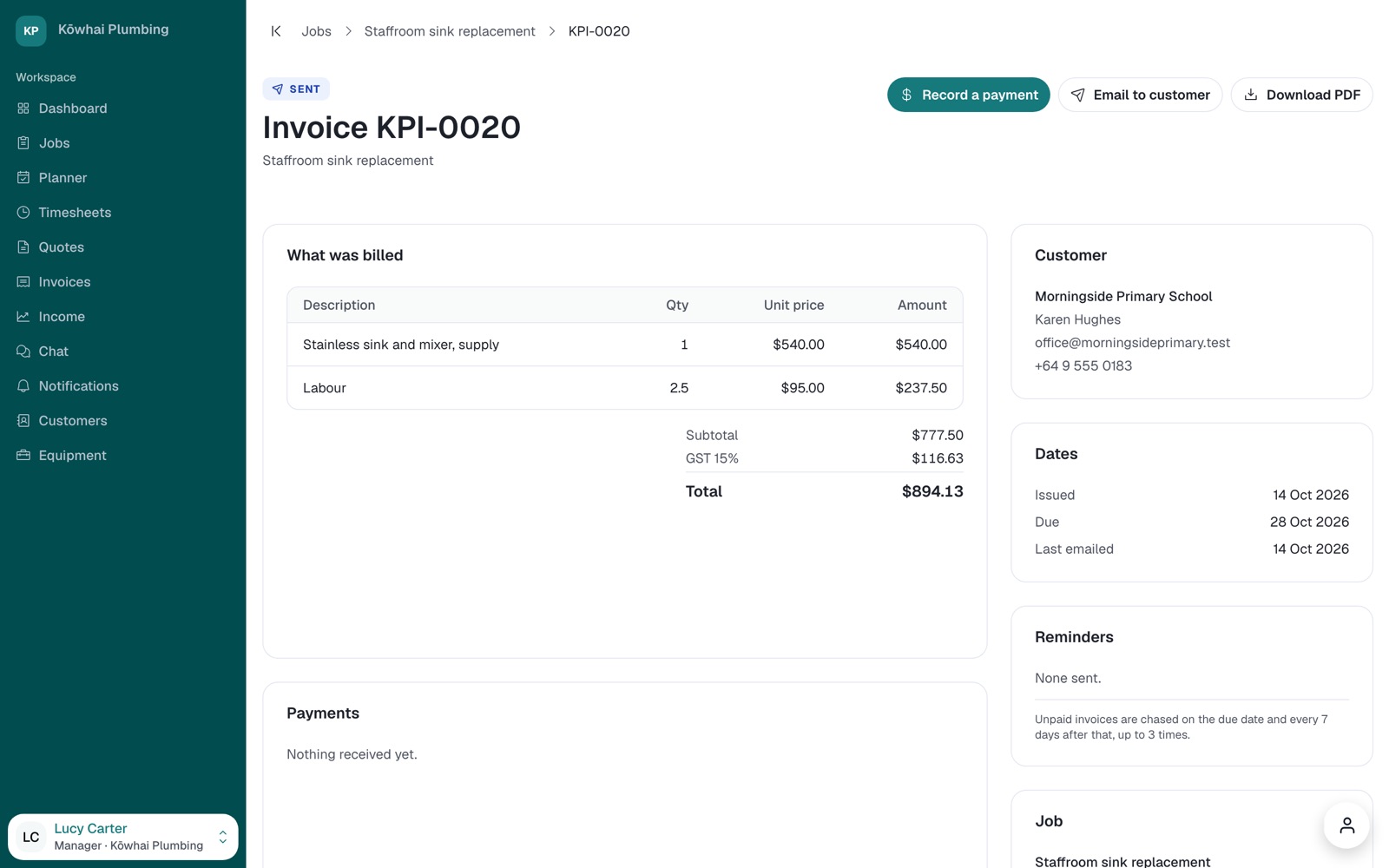
Bill the customer, record payments as they come in, and let IMD send the reminders. Unpaid invoices are chased on the due date and every week after, up to three times.
Try: record a part payment on the staffroom sink invoice and watch what's still owing.
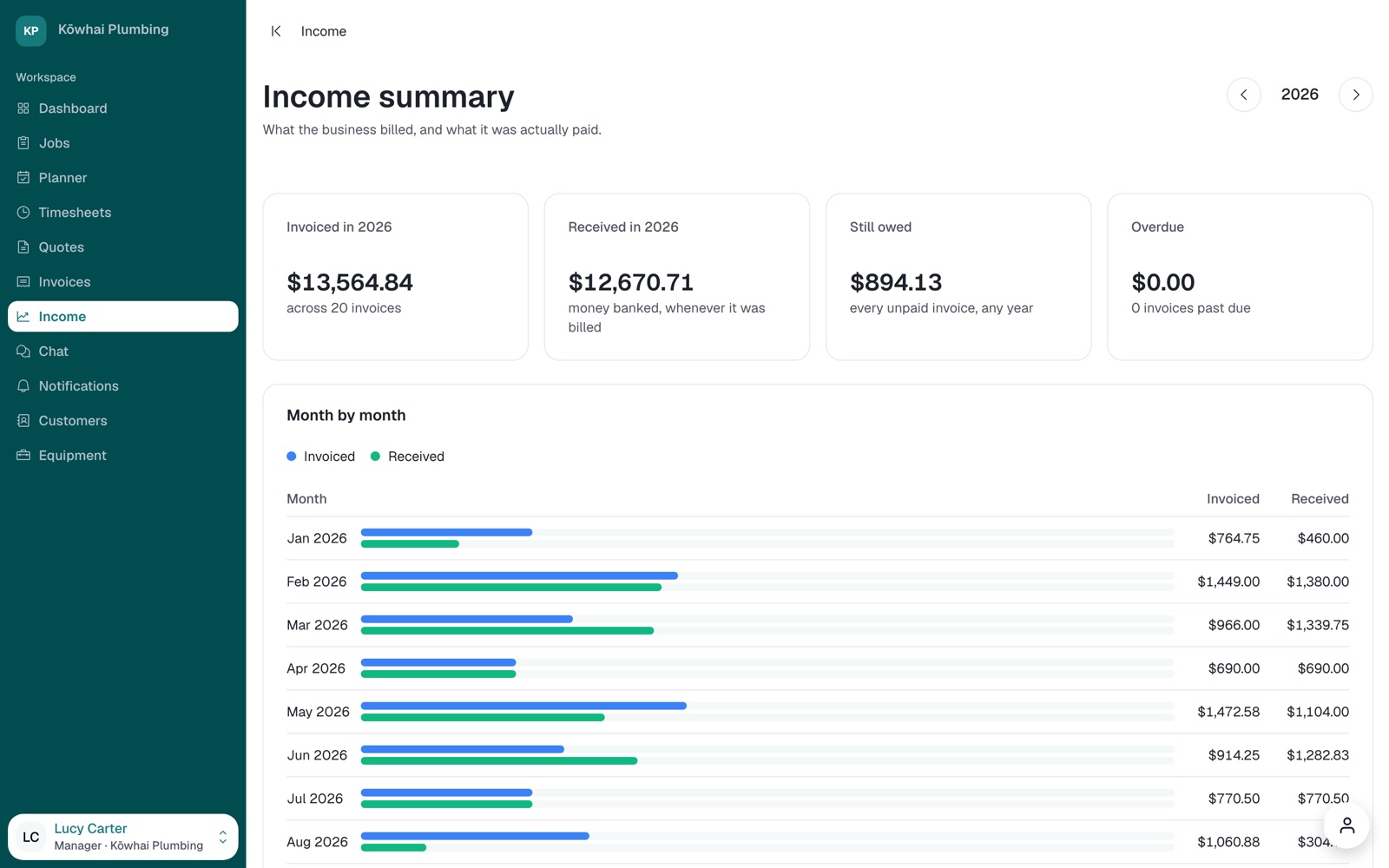
What the business billed and what it was actually paid, month by month, with what's still owed and what's overdue.
Try: record a payment, then come back here.
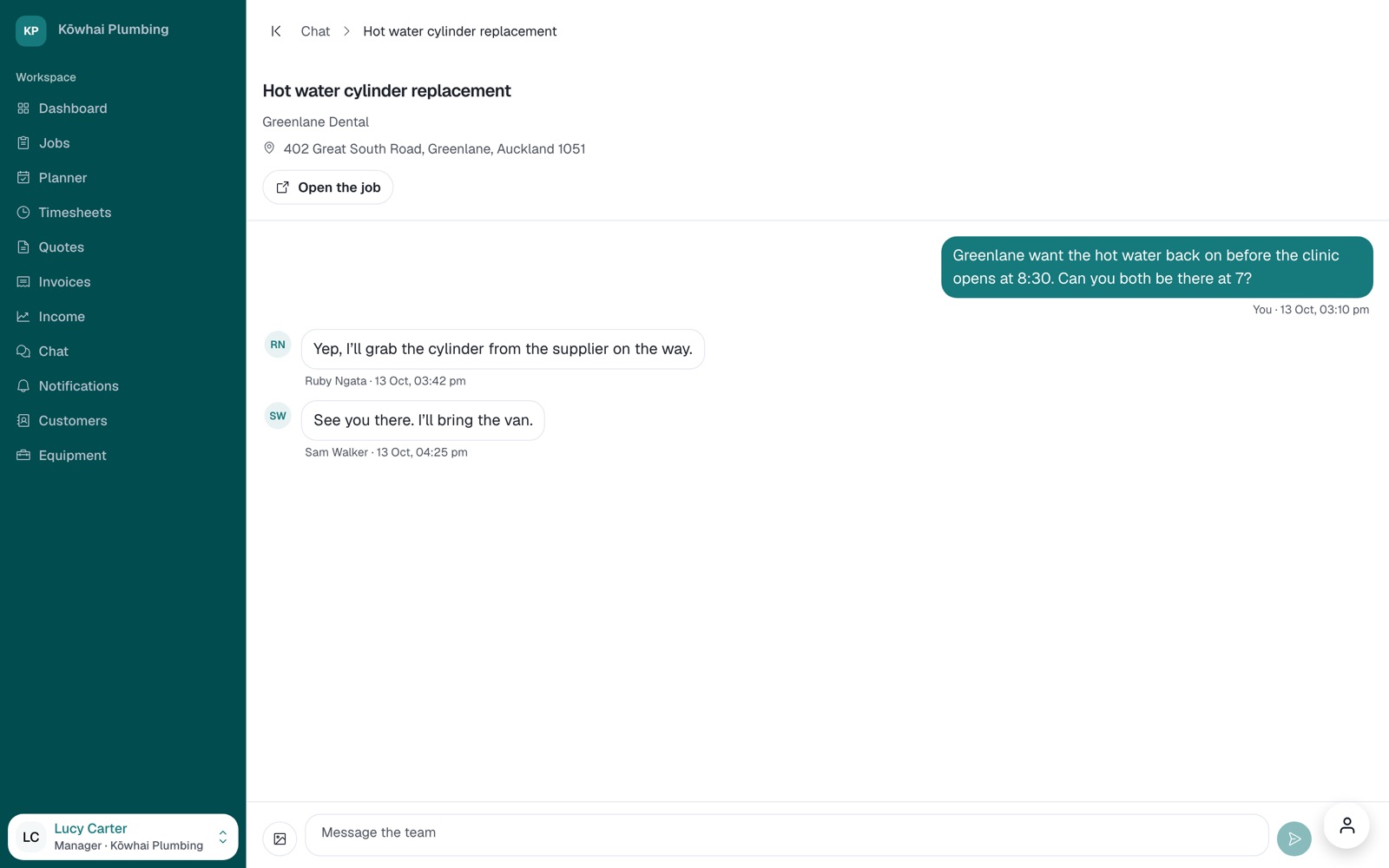
A thread on each job, so the questions from site stay with the work instead of scattering across everyone's phones. Photos can go in too. Tradies see the threads for the jobs they're on.
Try: reply to the cylinder thread as Tom, and watch it arrive on Sam's phone.
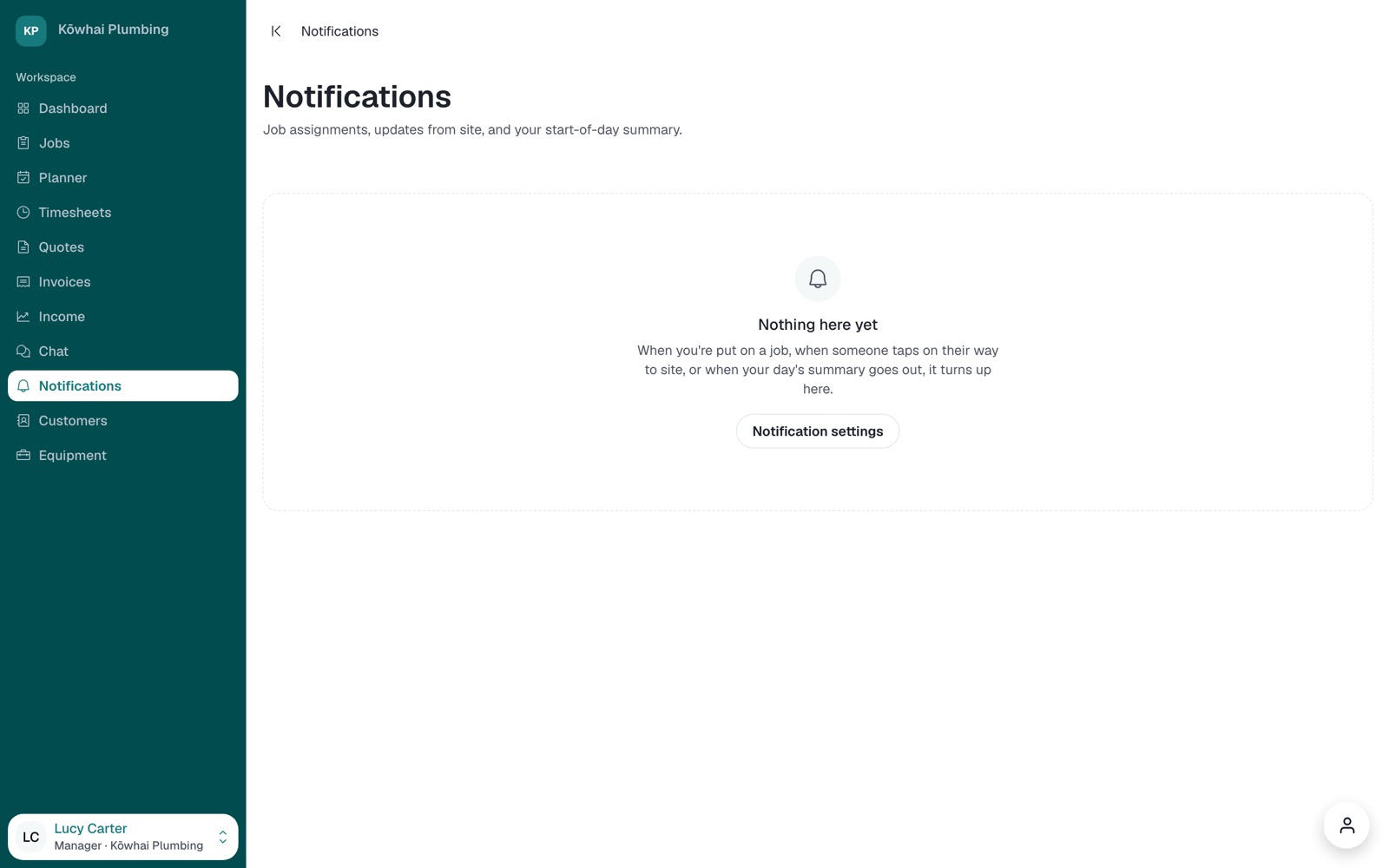
The bell. It catches what you missed: someone assigned to a job, a tradie on their way or arriving on site, a timer that was left running. The phone gets the same as push notifications. Each person chooses what they receive under Settings, Notifications.
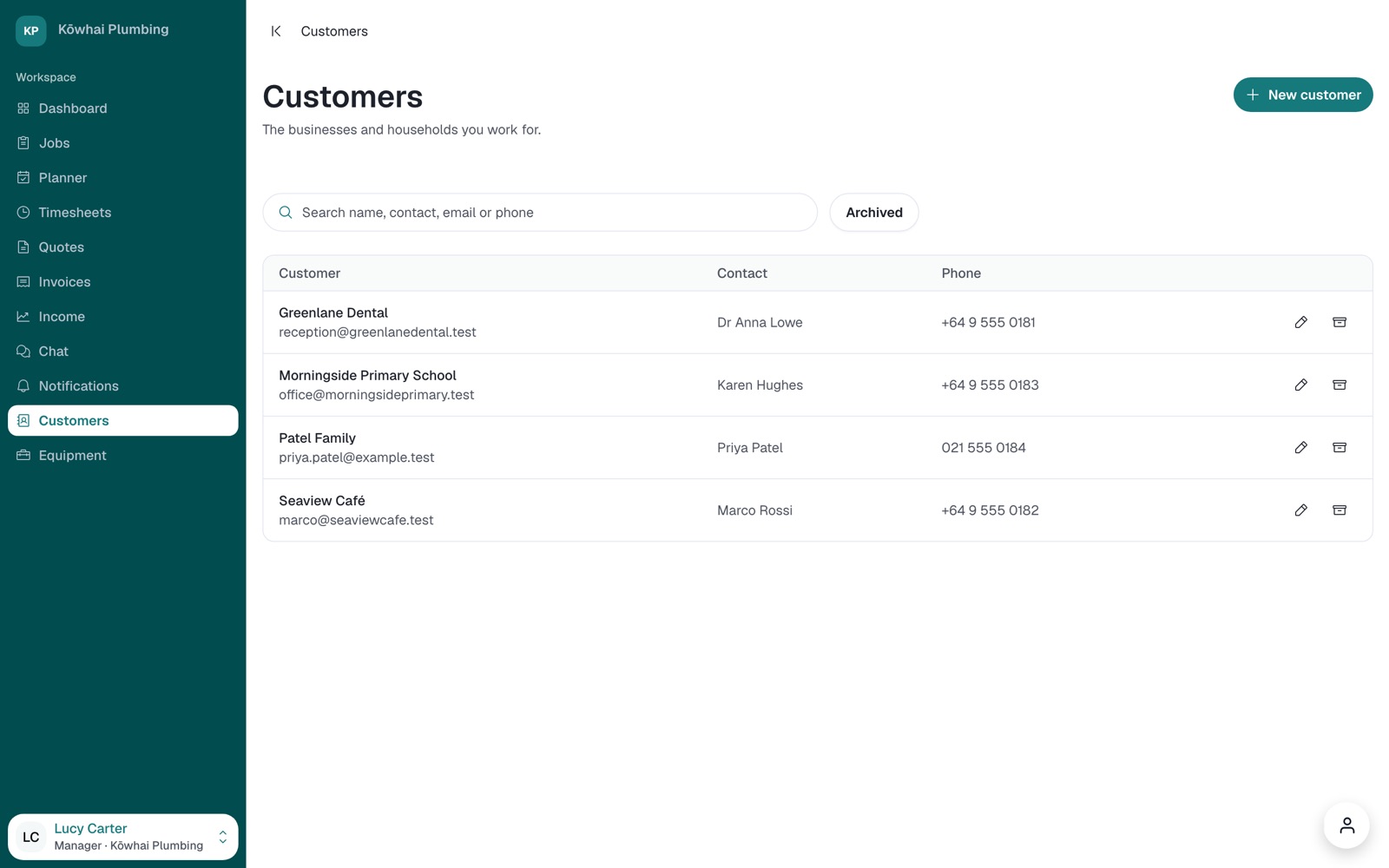
Who you work for, and how to reach them. Every job, quote and invoice points back here. A customer you no longer work with can be archived without losing their history.
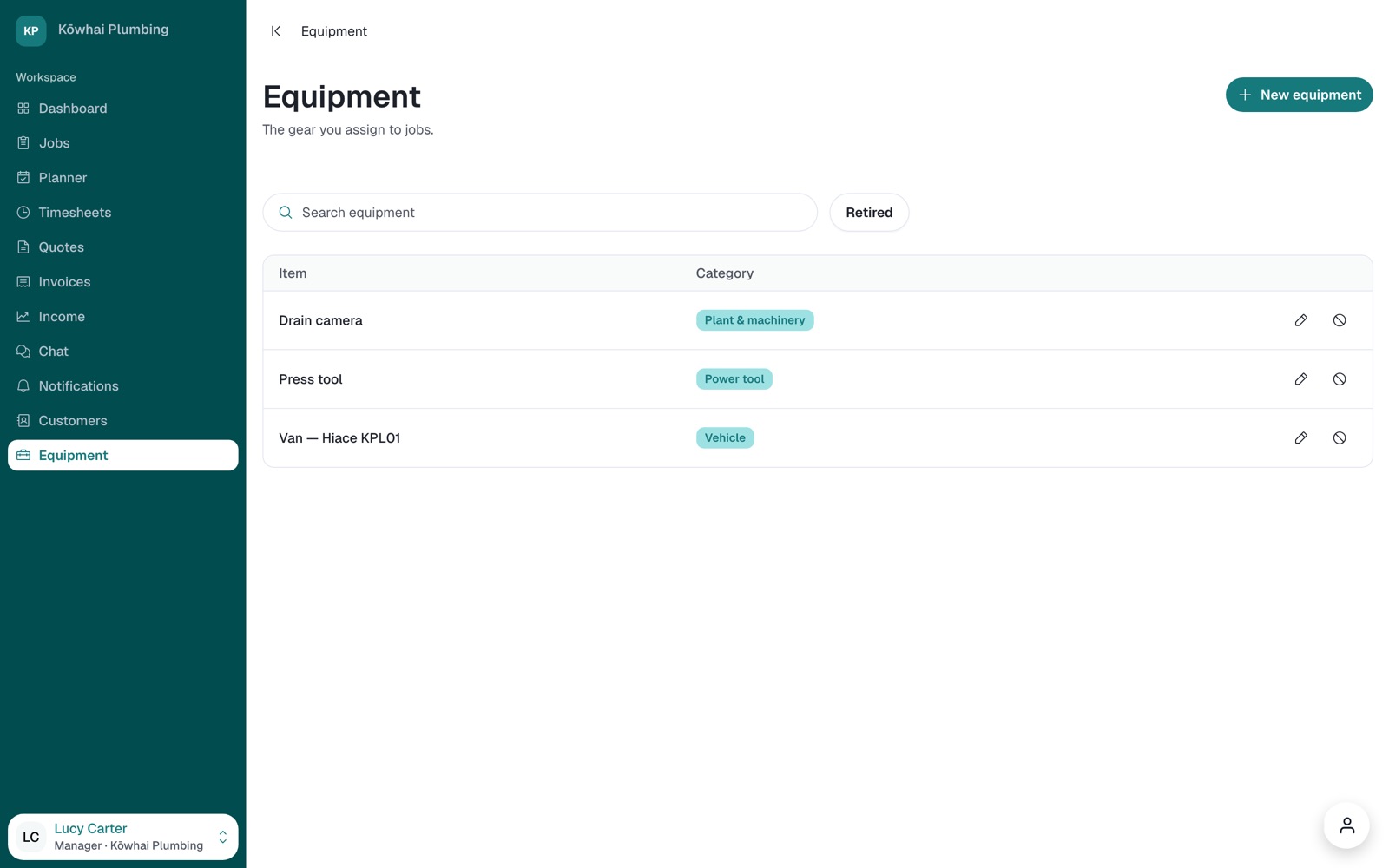
The gear the business owns, so the right van and tools go out with the crew that needs them. The Planner shows what's booked where.
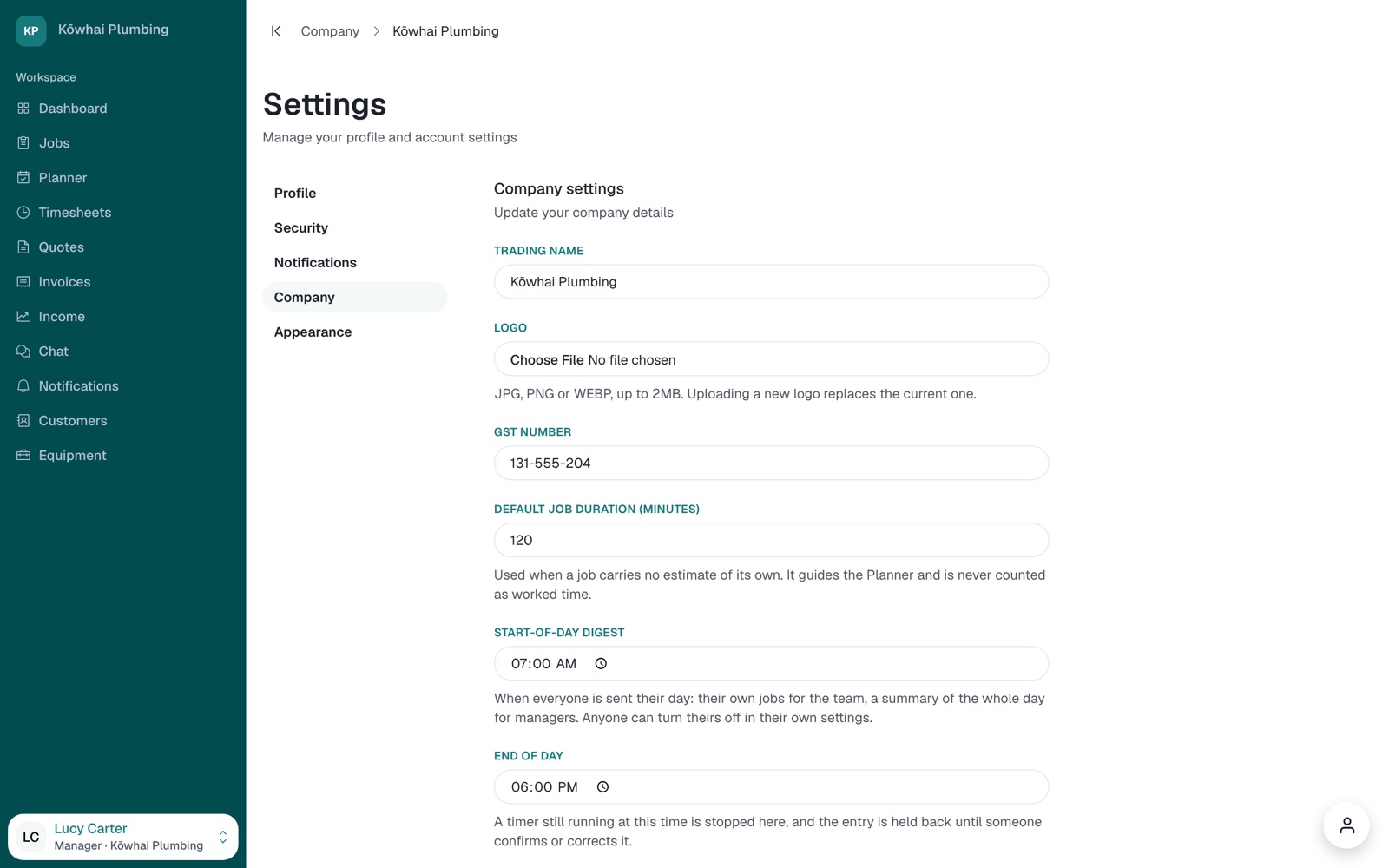
Click your name at the bottom of the sidebar, then Settings. Everyone has their profile, password and notifications there. The office also has Company: business details and logo, brand colour, invoice settings, the rules for a working day, the team, and invitations.
Try: give your own business a brand colour and watch the app change to match.
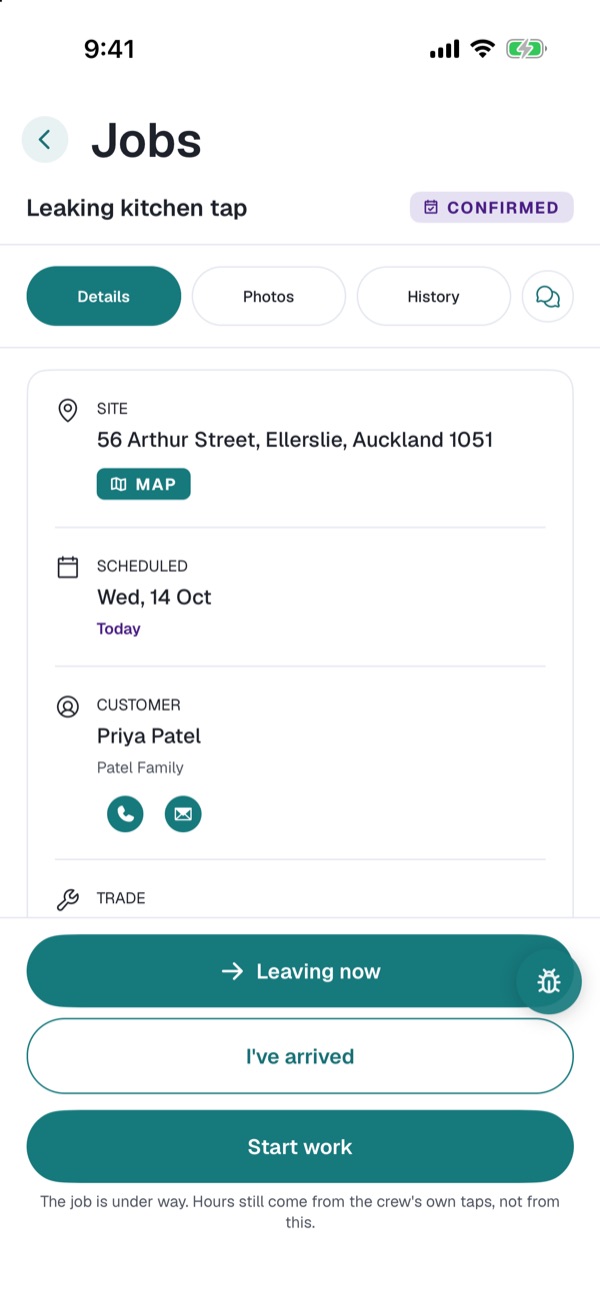
Built first for the person on the tools: big buttons, one job at a time, and a timer that records travel and time on site as they go. Owners and managers get the office's everyday work on it too.
The office sees each step as it happens. A timer still running at the end of the day is stopped and held for the office to check.
The Planner's week, timesheets, income and company settings stay on the web.
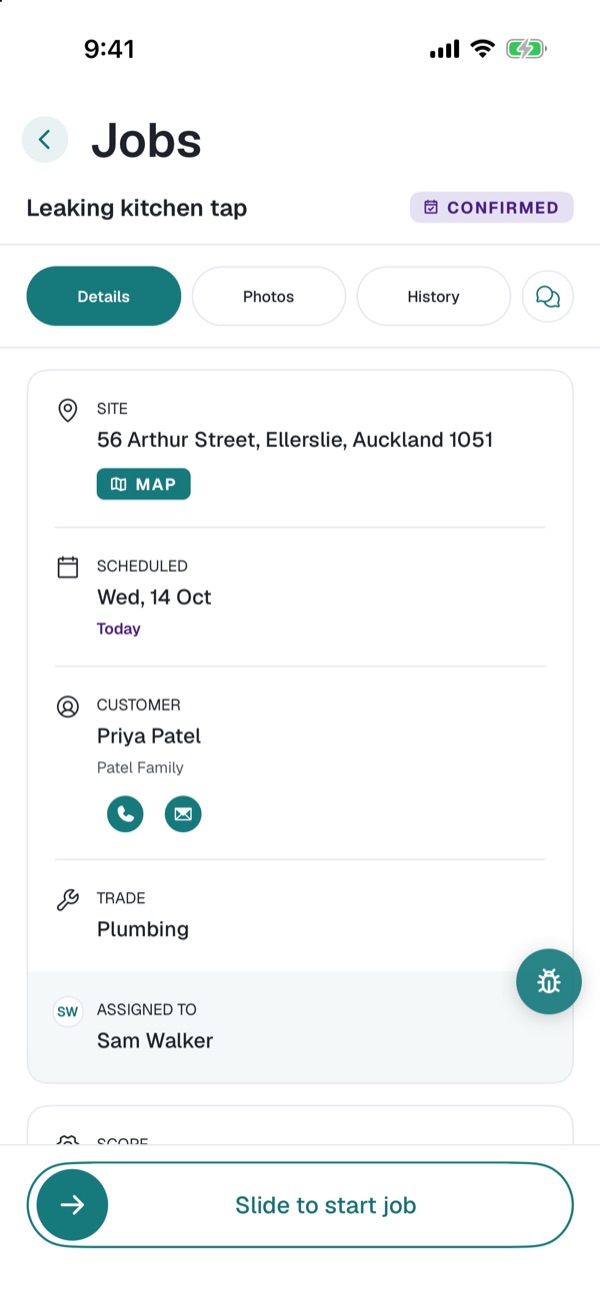
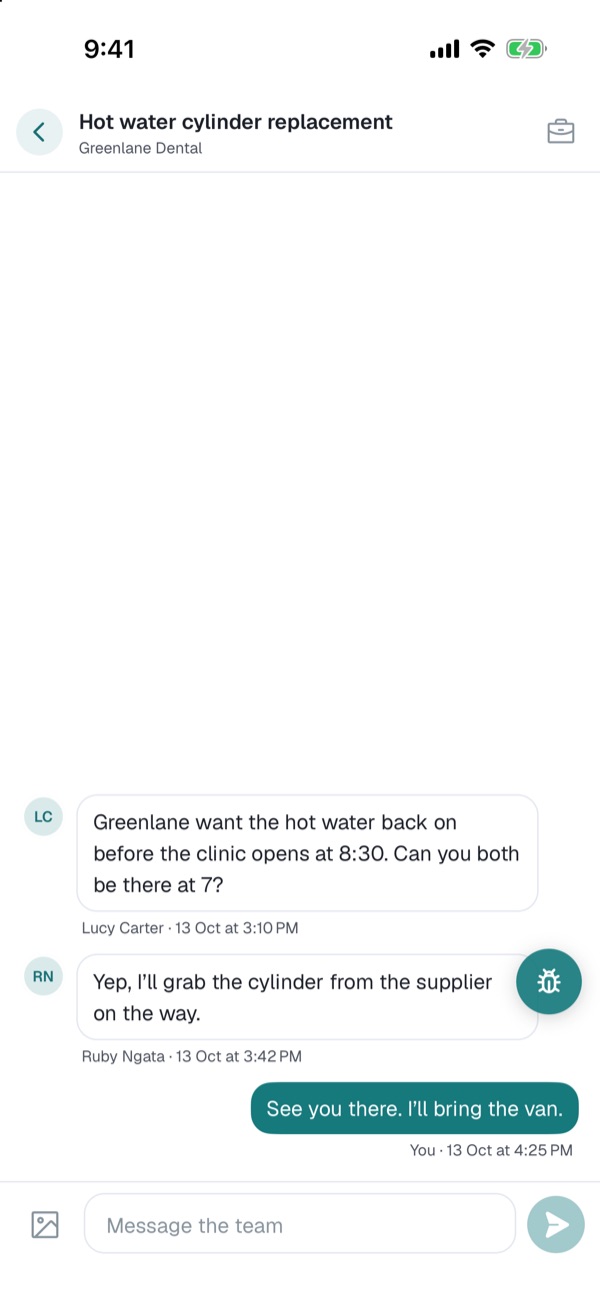
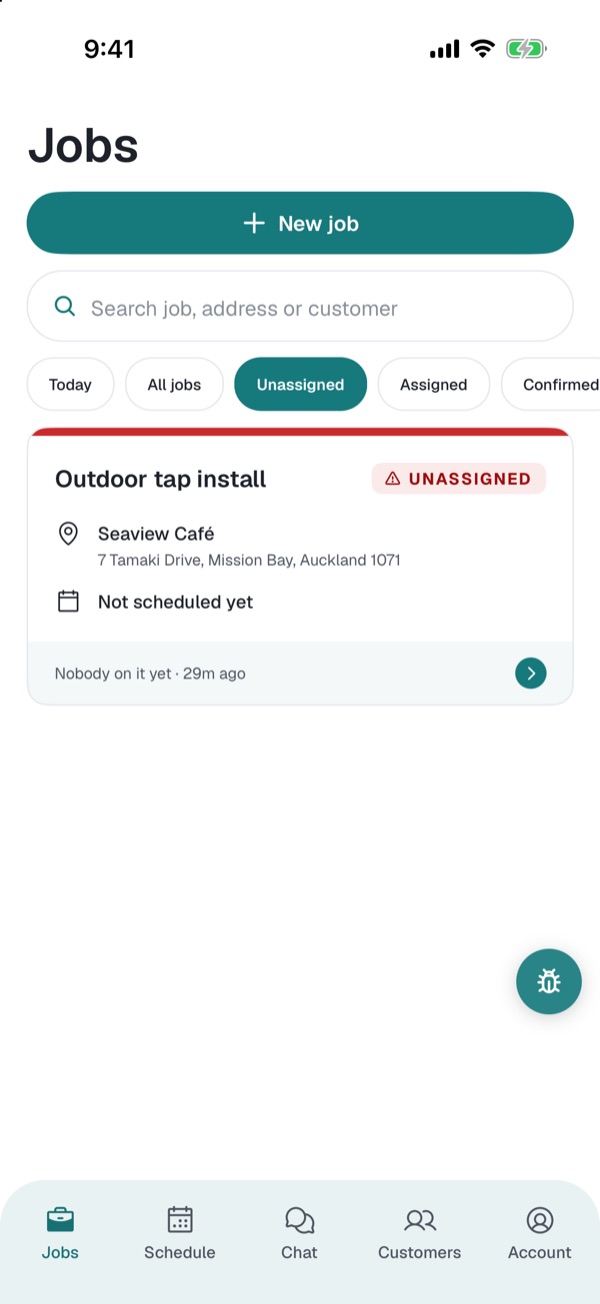
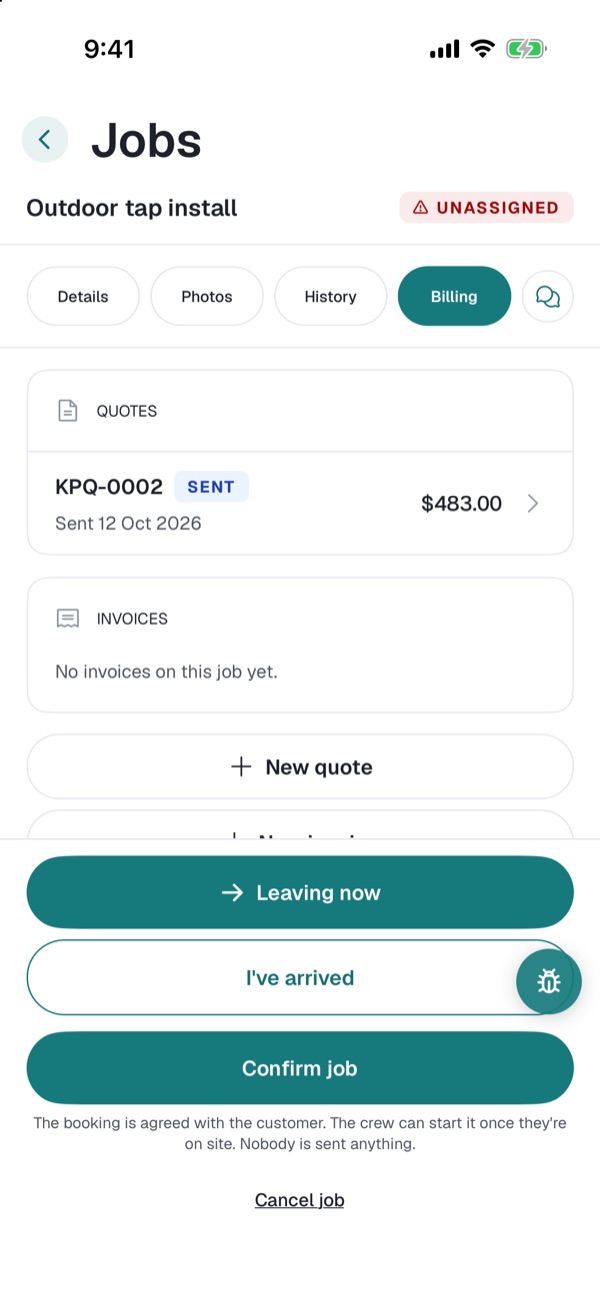
Signed in as a manager, the same app adds a New job button, the Unassigned filter, a Customers tab, and a Billing tab on every job.
Anything at all. There are no set questions, because the most useful feedback is usually about something we didn't think to ask. These are the kinds of things we're looking for.
Errors, buttons that do nothing, wrong numbers, screens that look off. Small things count too.
Whether the owner, a manager and a tradie each have what they need, on the web and on the phone, and nothing they shouldn't.
Whether the way a job moves from first call to paid matches how a trade business really works, and where it feels slow, backwards or needs adjusting.
Something you went looking for and couldn't find, or a word or screen that didn't make sense the first time.
The easiest way to tell us is Pinpoint, right on the screen in question: Bug for something broken, Question when you're not sure, and Polish for anything you'd change. Bigger thoughts are just as welcome at our next meeting.